
Change password
Device unlock must be enabled again after this change. Unfinished drafts will be cleared. Existing backups retain their original passwords.
Password and recovery
- Choose Settings & help.
- Choose Change password.
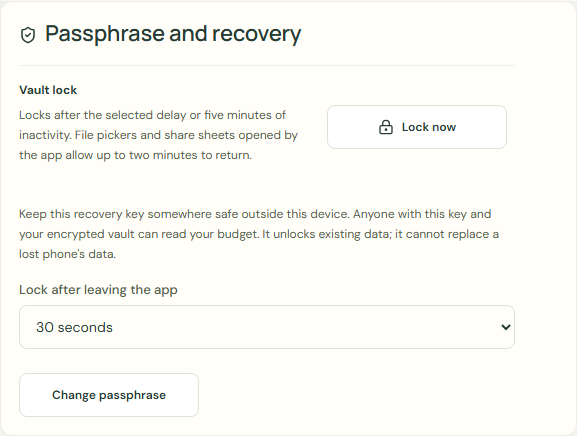 Enlarge screenshot
Steps
- Complete Current budget password.
- Complete New budget password.
- Complete Repeat password.
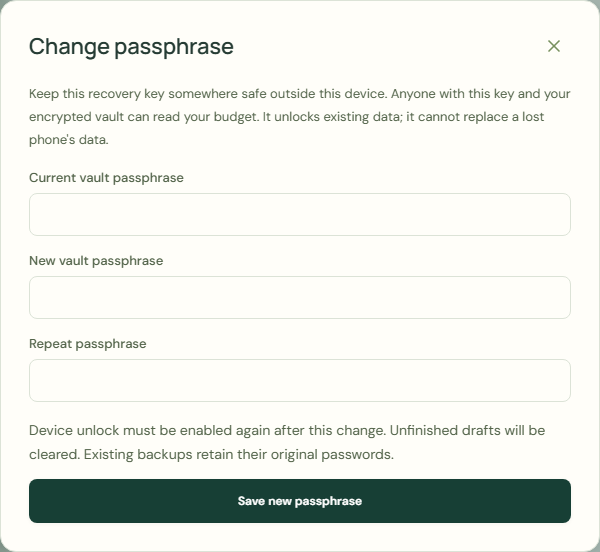 Enlarge screenshot
What should happen
Device unlock must be enabled again after this change. Unfinished drafts will be cleared. Existing backups retain their original passwords.
Do not uninstall NiyaJar or clear its storage. If device unlock works, open your budget and save an encrypted backup. Otherwise, use your saved recovery key on the lock screen, if recovery was enabled, or restore a backup using its password. A recovery key cannot replace lost data. Without encrypted data and a working password or recovery key, recovery is not possible.
- Choose Save new password.
- Choose Lock now.
- Complete Budget password.
- Choose Unlock my budget.
Worked example
- Complete Current budget password.
- Complete New budget password.
- Complete Repeat password.
- Choose Save new password.
- Choose Lock now.
- Complete Budget password.
- Choose Unlock my budget.
Device unlock must be enabled again after this change. Unfinished drafts will be cleared. Existing backups retain their original passwords.
Common mistakes and fixes
Device unlock must be enabled again after this change. Unfinished drafts will be cleared. Existing backups retain their original passwords.
- Choose Encrypted backup.
- Choose Verify a backup.
Wait for save confirmation. If an error appears, correct it before continuing.